Easily Integrate Google Sheets/Forms Information into Docs and Slides
Matthew Thaxter
Director of Learning
News
Teq Supports District Implementation: Beyond funding guidance, Teq provides turnkey grant alignment, hardware staging, and certified PD coaching via OTISpd.com to ensure 100% classroom adoption.

Today, we’re going to show you a time-saving technique that’s perfect for quickly embedding data and creating reports in Google Docs/Slides. This is the perfect solution for anyone interested in having a running report of student grades or progress/summary and adding it to a document or presentation. In a few simple steps, you’ll be able to utilize raw dynamic data within your presentations without having to constantly replace your charts!
To do this, all you need is Google Sheets/Forms and the basic functions of Google Docs/Slides.
Getting Started
For today’s example, we’ve modeled how to accomplish this in Google Docs, however, the steps are the same for Google Slides.
Please note: If you only need to run graphical data, you only need to send the Google Doc. The receiver would only need to have the Doc, and it will automatically update.
Step 1
Go to Google Forms and select “Start a new form.” This will be where you collect your data.

Step 2
Once you have collected the results, in Google Forms click into the Responses tab. Then select the green box in the upper right side, and select “Create a new spreadsheet.”


Step 3
From the Sheet, organize your data within the Sheets application.

Step 4
To create the chart(s) from the data collected, go to “Insert” (top left), and select “Chart.” Here, you can select what chart type you would like to use, the data range, and other ways to customize your chart.


Step 5:
Open Google Docs and draft the layout of your document.
Step 6:
When you reach the point in your Document where you would like to insert the information from Google Sheets,
- Click Insert
- Click Chart > From Sheets…
- Navigate to the desired Chart and select Import (bottom right).

In order to have the chart (which is now inserted into Google Docs) automatically update as more data is collected within your Google Form and then Sheet, select Link to Spreadsheet.
Again, this will allow any new data collected through Google Forms to be sent to Google Sheets, and ultimately, reflect on the Chart (which will be in your Google Doc or Google Slide, depending on where you inserted the chart).
Step 7
When you want to update the chart/data which is located in the Google Doc or Slide, click on the chart, and then click Update (top right of chart).

Now you have the ability to utilize raw, dynamic data in your presentations without having to constantly replace your charts!
For More
For more great Google Tips like this, visit our Teq Tip page. Here, you will find quick and easy videos that teach you how to make the most of Google Apps For Education, Gmail, and more!
0 thoughts on “Easily Integrate Google Sheets/Forms Information into Docs and Slides”
Related Articles & Other Recommended Reading

Reflecting on the Past Year: Questions to Assess Your EdTech Success
Congratulations! You’ve made it to the finish line, and summer is here! All of your diligent work and dedication have paid off, and now it’s time to enjoy your hard-earned rest. After the noise of the previous school year fades, being in the classroom is likely the last thing on your mind. As a former […]
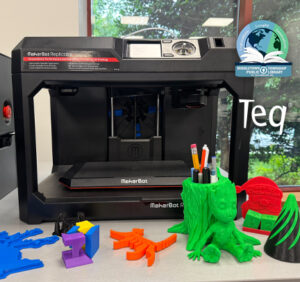
Customer Spotlight: Middletown Township Public Library
How One Library Built a Community Hub for Creativity, Connection, and Innovation When people think of libraries, they often imagine books, research, and quiet study spaces. At Middletown Township Public Library, those services remain central to the library’s mission, but today’s visitors can also design custom apparel, engrave personalized gifts, create prototypes, and learn new technical […]

How to Safely Store Your AR/VR Headsets for the Summer
As the school year comes to a close, properly preparing your AR/VR hardware for summer storage is essential to extending the lifespan of your investment. Taking a few deliberate steps ensures that when teachers and students return in the fall, their headsets, controllers, and charging carts will be clean, functional, and ready for classroom use. […]