Making Music with Your Ozobot
Jasmine Rivera
PD Specialist
News
Teq Supports District Implementation: Beyond funding guidance, Teq provides turnkey grant alignment, hardware staging, and certified PD coaching via OTISpd.com to ensure 100% classroom adoption.

Do you like making music? As part of Ozoblockly (Ozobot’s free block-based coding application), you can now program your Evo to play musical notes! OzoBlockly also allows you to access the app from a device and take advantage of coding via Bluetooth. When coding your Evo through Ozoblockly you’ll also have the opportunity to review your codes in JavaScript. This will help you familiarize yourself with the jargon so that when you’re ready to work in JavaScript, you (and your students) can easily make the transition.

In order to play sounds in Ozoblockly, you must have an Evo (not the older Bit robot). First, make sure you have selected the Evo option in OzoBlockly. Under the Intermediate (3), Advanced (4), and Master (5) settings of OzoBlockly, you have the ability to add sounds to your programing. For our example in this blog, I will be using the coding for Intermediate. Select the “Sounds” on the left side menu. In the dropdown menu you will find a code that says, “Play Note.”

Drag and drop the code to your workspace and select your musical key. Under this tab you can select the specific musical notes for the song. For this example, here are the notes for the first part of “Twinkle Twinkle Little Star.”

Now, here is the entire song coded using the Master Coding blocks. These were selected so that the order and duration of the notes could be manipulated. In this sequence a “Repeat” block was used for part of the section of the song. You could use repeat blocks multiple times if needed to reduce the number of blocked used on your workspace.

Once you have completed your song, you will need to flash the code to your Evo. To flash your Evo, you need to select the “Flashing” icon on the lower left side. Follow the instructions to calibrate your Evo and then flash code it. Once it has been flash coded you can double tap the on/off button on your Evo and it will play the song. Use this as an opportunity to test out other notes and create your own personalized melodies.
This is a great way to incorporate melodies into your Evo codes and have a little musical fun coding with OzoBlockly. Get started on creating your melodies!
If you want to explore other ways to us your Ozobot check out our other Ozobot courses on OTIS for educators.
0 thoughts on “Making Music with Your Ozobot”
Related Articles & Other Recommended Reading

Reflecting on the Past Year: Questions to Assess Your EdTech Success
Congratulations! You’ve made it to the finish line, and summer is here! All of your diligent work and dedication have paid off, and now it’s time to enjoy your hard-earned rest. After the noise of the previous school year fades, being in the classroom is likely the last thing on your mind. As a former […]
Customer Spotlight: Middletown Township Public Library
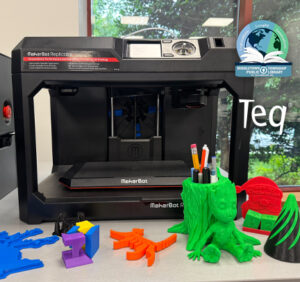
How One Library Built a Community Hub for Creativity, Connection, and Innovation When people think of libraries, they often imagine books, research, and quiet study spaces. At Middletown Township Public Library, those services remain central to the library’s mission, but today’s visitors can also design custom apparel, engrave personalized gifts, create prototypes, and learn new technical […]

How to Safely Store Your AR/VR Headsets for the Summer
As the school year comes to a close, properly preparing your AR/VR hardware for summer storage is essential to extending the lifespan of your investment. Taking a few deliberate steps ensures that when teachers and students return in the fall, their headsets, controllers, and charging carts will be clean, functional, and ready for classroom use. […]