How to Change Your Name in Google Classroom
Matthew Thaxter
Director of Learning
News
Teq Supports District Implementation: Beyond funding guidance, Teq provides turnkey grant alignment, hardware staging, and certified PD coaching via OTISpd.com to ensure 100% classroom adoption.

While many teachers wish to take full advantage of the G Suite for Education app for Google Classroom, there has been a nagging concern for some teachers: “How do I get my name listed as Mr./Mrs./Ms./Miss/Dr.?”
Your Google Classroom is based upon your Google account, and your Google Admins need to give you permission to alter your personal information. However, the Google Admin cannot change your personalized Google information themselves — this is left for the individual teacher to edit.
When a teacher wishes to alter his/her Classroom name, this will change your information across all of the linked Google account applications. However, please note this will not change your official information in your Google account, just your public-facing profile.
There are two ways you can change your salutation:
- Directly from Google Classroom
- Using the Google Apps icon
Choose which method you’re going to use, and then follow the step-by-step instructions below.
Option 1: Change your name directly within Google Classroom
- While in Google Classroom, click on the Classroom main menu (A.K.A. the “hamburger” menu made of three parallel lines in the upper left-hand corner).
- Then click on the Settings gear.

- Then, click on Manage.

- Next, click Personal info.

- Now click on the right-facing chevron next to your name. You will most likely have to sign in again for security purposes.

- Change your first name to the salutation of your choice and then click Save.

Option #2: Change your name from the Google app icon
- Open a new Google search page.
- Click on your avatar/icon that represents your profile.

- Then, click on Manage Your Google Account.
- Click Personal Info, and then click on the right-facing chevron next to your name. You will most likely have to sign in again for security purposes.
- Change your first name to the salutation of your choice and then click Save.
That’s it! That’s just how easy it is to rename yourself in the Google world. Just make sure you have permission from the Google admins to complete these steps.
Need more neat ideas and tricks for your Google experiences in your learning environments? Be sure to visit OTIS for educators for more information, skills, and learning content.
If you have any questions, do not hesitate to contact us at training@teq.com or OTIS@teq.com.
Teq is an experienced Google for Education Partner. If your school is purchasing G Suite Enterprise for Education or Chromebooks, you may be eligible to receive free PD from Teq as part of the Google Service Offer program.
0 thoughts on “How to Change Your Name in Google Classroom”
Related Articles & Other Recommended Reading

Reflecting on the Past Year: Questions to Assess Your EdTech Success
Congratulations! You’ve made it to the finish line, and summer is here! All of your diligent work and dedication have paid off, and now it’s time to enjoy your hard-earned rest. After the noise of the previous school year fades, being in the classroom is likely the last thing on your mind. As a former […]
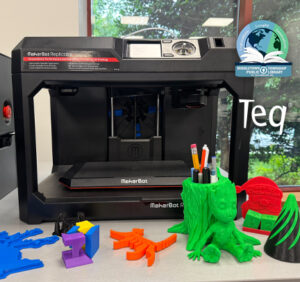
Customer Spotlight: Middletown Township Public Library
How One Library Built a Community Hub for Creativity, Connection, and Innovation When people think of libraries, they often imagine books, research, and quiet study spaces. At Middletown Township Public Library, those services remain central to the library’s mission, but today’s visitors can also design custom apparel, engrave personalized gifts, create prototypes, and learn new technical […]

How to Safely Store Your AR/VR Headsets for the Summer
As the school year comes to a close, properly preparing your AR/VR hardware for summer storage is essential to extending the lifespan of your investment. Taking a few deliberate steps ensures that when teachers and students return in the fall, their headsets, controllers, and charging carts will be clean, functional, and ready for classroom use. […]