The Ultimate 5-Step SMART Board Refresh Checklist: Back-to-School Tech Guide for Teachers
Adam Fragale
Curriculum & PD Specialist
OTIS Blog Feed
Teq Supports District Implementation: Beyond funding guidance, Teq provides turnkey grant alignment, hardware staging, and certified PD coaching via OTISpd.com to ensure 100% classroom adoption.
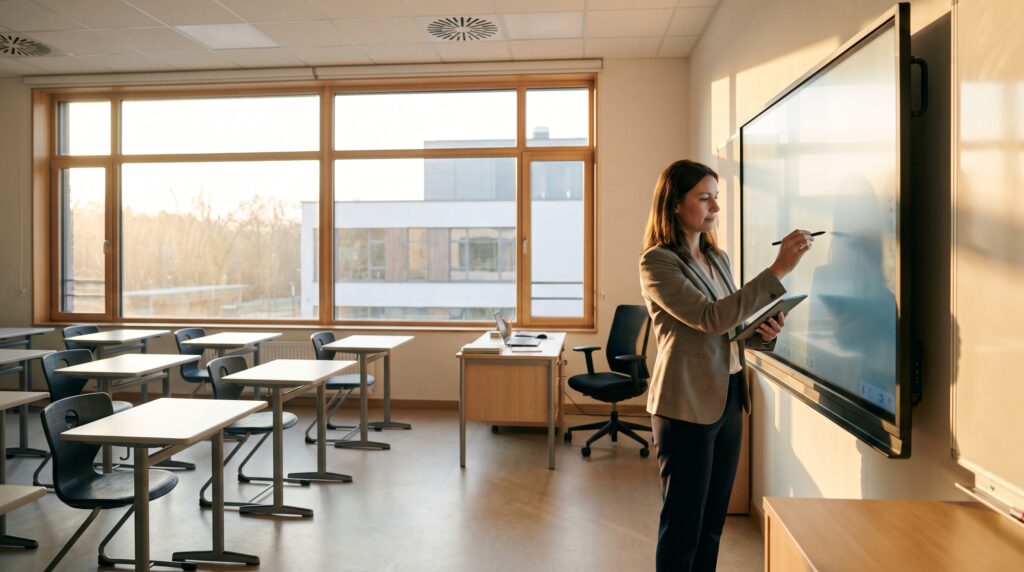
As K–12 classrooms prepare for the new 2026 academic year, front-of-room interactive displays stand at the center of blended instructional workflows. However, hardware longevity and pedagogical effectiveness depend heavily on pre-school-year preparation. This comprehensive guide delivers an actionable checklist to help educators refresh their ed technology, ensuring these vital teaching tools are ready to facilitate dynamic learning environments from day one.
What is a SMART Board Refresh?
A SMART Board refresh is the systematic process of cleaning physical optical sensors, updating system firmware, calibrating touch accuracy, and organizing digital workspaces on interactive flat panels before instruction begins. Proper maintenance prevents technical disruptions and ensures that teachers can seamlessly integrate interactive lesson delivery without losing valuable classroom time.
The 5-Step SMART Board Refresh Checklist
Step 1: Physical Maintenance, Optical Hygiene, and Sensor Care
Proper physical maintenance prevents sensor blindness, protects optical coatings, and ensures hardware longevity. Dust and classroom debris are the primary culprits behind “phantom touches” or dead zones on an interactive display.
To clean the screen surface safely, always turn off the display and connected computers first. According to the SMART Technologies Installation and Maintenance Guidelines, educators should wipe the screen using a dry, lint-free, non-abrasive microfiber cloth. For stubborn residue, a lightly dampened cloth with a drop of mild dish soap is acceptable. Never spray liquids directly onto the panel or use harsh chemical abrasives that degrade the anti-glare coating.
Infrared (IR) transmitter and sensor maintenance requires gentle care along the display’s bezel. Gently wipe the bevel channels with a clean microfiber cloth or use 50% isopropyl alcohol on a cloth for stubborn buildup. Avoid using high-pressure compressed air cans, which can force debris deeper into the optical assembly; low-pressure camera bellows bulbs are recommended instead.
Step 2: Firmware, iQ Operating System, and Driver Verification
Outdated display software can cause pen latency, broken screen casting, and application crashes during crucial instructional blocks. Ensuring software is current is a mandatory step in technology preparation.
Start by verifying the iQ System software updates. Check that the panel is running the current system software (such as iQ 3.17+ or iQ 4+). Displays connected to Wi-Fi or Ethernet can auto-update, or teachers can update manually via Settings > Auto Update > Apply Update Now, as outlined in the SMART 6000S iQ Documentation.
Additionally, ensure classroom computers have the latest version of SMART Product Drivers and SMART Ink installed. This preserves object awareness, allowing the board to differentiate between a pen, a finger touch, and a palm erase across native desktop applications. If pen tracking feels offset, run the SMART Touch Orientation utility from the system tray to re-align touch coordinates.
Step 3: Organizing iQ Launchpads and Teacher Workspaces
Customizing the front-of-room environment reduces transition downtime during instructional blocks. A well-organized digital workspace allows teachers to navigate their digital resources efficiently.
Begin by pinning high-frequency classroom apps to the primary iQ home launcher. Removing clutter and pinning essentials like the SMART Whiteboard, Chromium Browser, Lumio, Screen Share, and cloud storage shortcuts streamlines daily operations.
Implementing QR Code Single Sign-In (SSO) protects teacher privacy and saves time. Teachers can sign in to their personal SMART Account on the panel using a quick mobile QR scan. This instantly links personal cloud drives and saved lesson libraries without exposing passwords in front of students. Furthermore, setting up interactive widgets—such as timers, spinners, dice, and screen shades—directly inside the iQ workspace helps maintain lesson pacing and robust classroom management.
Step 4: Multi-Tasking and Split-Screen Instructional Workflows
Modern SMART displays equipped with iQ enable dual-app multi-tasking, allowing educators to facilitate collaborative stations and active modeling simultaneously. These features serve as powerful tools for teachers aiming to maximize classroom engagement.
Setting up side-by-side application layouts is straightforward: tap Recents, select an active application, and tap Split Left or Split Right. The SMART Split-Screen Guide highlights several effective workflows:
-
Video & Live Notetaking: Run an instructional video on one half of the screen while small groups capture observations on the Whiteboard side.
-
Graphic Organizers & Live Research: Display primary source documents alongside structured graphic organizer templates to guide student inquiry.
-
Station Tasks & Classroom Timer: Display lesson instructions on one pane while keeping a visual countdown timer visible on the other.
Step 5: Connecting Lumio and Collaborative Lesson Delivery
Connecting Lumio to the SMART Board bridges teacher presentation with 1:1 student device engagement. This connection transforms the display from a presentation tool into an interactive hub.
Educators can launch the embedded Lumio app on iQ to run teacher-paced and student-paced live sessions, granting full access to Class Sessions and real-time assessment data, as detailed in the SMART iQ 4 Lumio Guide. Alternatively, connecting a SMART Account automatically accesses Lumio lessons within the display’s Files Library for seamless synchronization.
Integrating SMART Lab games elevates formative assessments. Built-in templates like Monster Quiz, Super Sort, and Match ‘Em Up allow teachers to conduct real-time checks for understanding where students answer either at the board or via their own mobile devices.
The Link Between Hardware Readiness and Instructional Strategies
While hardware maintenance ensures operational readiness, educational research demonstrates that technology impact is fundamentally governed by teacher pedagogical fluency. Upfront hardware rollouts without pedagogical coaching often lead to underutilized resources.
Recent 2026 data emphasizes the critical combination of technical upkeep and modern instructional strategies:
|
Research Focus |
Core Finding |
Pedagogical Implication |
|---|---|---|
|
Panel Acceptance |
High teacher acceptance across 86 classrooms using large interactive touch displays (IJETL, 2026). |
Enhanced student attentiveness is achieved when leveraging gamified elements. |
|
Teacher Competence |
Statistically significant combined influence of interactive flat panel utilization and teacher pedagogical competence on student outcomes (IJEVSS, 2026). |
Display hardware alone does not boost scores; technology integration must align with sound instructional strategies. |
|
Professional Development |
Structured, ongoing professional development maximizes panel ROI (EdTech Magazine). |
Continuous micro-coaching prevents interactive boards from becoming “expensive chalkboards.” |
As educational technology experts note: “A SMART Board without updated firmware and clean optical sensors is a barrier to learning; a SMART Board without pedagogical professional development is merely an expensive digital projector.”
Maximizing Technology for Teachers with OTISpd.com
Bridging the gap between a freshly updated SMART Board and impactful classroom instruction requires targeted professional development. As an authorized, state-approved professional development platform, OTISpd.com (powered by Teq) specializes in helping schools integrate modern edtech effectively.
According to instructional data, educators completing targeted edtech micro-credentials on OTISpd.com demonstrate an average 33.3% growth in digital tool proficiency. To fully leverage classroom displays, OTIS offers specialized learning paths designed around technology for teachers:
-
SMART Board Basics & SMART Ink Customization: Foundational courses on navigation and computer application integration.
-
The SMART iQ Module Workflow: Training that helps teachers transition from tethered computer projection to untethered, station-based interactive instruction.
-
SMART Lab Games & Formative Assessment: Strategies for transforming static assessments into dynamic activities that track real-time comprehension.
-
1:1 “Ask OTIS” Coaching: Direct pairing with Curriculum and PD Specialists for personalized guidance on lesson design.
By combining a rigorous physical and digital refresh checklist with structured micro-credentialing, educators can elevate their ed technology proficiency and ensure their interactive flat panels deliver measurable instructional value throughout the school year.
Related Articles & Other Recommended Reading

Beat the June Burnout: 7 Low-Stress PD Sessions to Prep for Next Year
The countdown is on! Whether you’re a teacher officially on break or school is still in session, we’re celebrating another successful year. You’ve earned the time off to relax and maintain your skills with OTIS for educators! We’ve got tons of engaging PD courses all year round and have curated courses that will perfectly pair […]

Catch Teq at ISTE 2026!
Teq is ecstatic to attend the annual International Society for Technology in Education (ISTE) Live26! We’re excited to connect with educators and leaders alike to integrate cutting-edge edtech solutions that transform classroom instruction. Taking place from June 28th to July 1st, 2026, this top-notch event is being held at the Orange County Convention Center in […]
Go Beyond the Sticker Chart!
While sticker charts may appear to be harmless fun, there are a variety of reasons why educators should consider pivoting away from them. Let’s dive into practical strategies that rise above external rewards to build a lasting framework. It’s time to go beyond the sticker chart! Why Pivot? Ultimately, sticker charts can highlight student inequalities […]