Back-to-School with Google Classroom
Robert Abraham
Instructional Strategist
OTIS Blog Feed
Teq Supports District Implementation: Beyond funding guidance, Teq provides turnkey grant alignment, hardware staging, and certified PD coaching via OTISpd.com to ensure 100% classroom adoption.
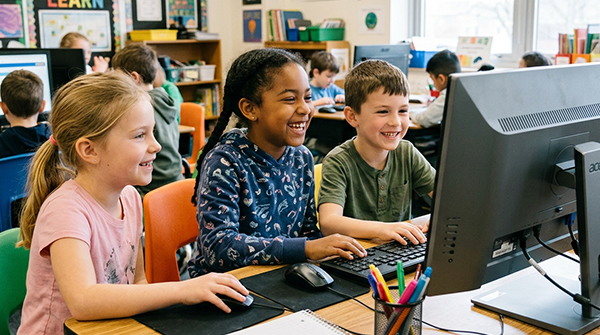
As we kick off a fresh school year, it’s time to take a look at some of the changes Google Classroom made over the summer. Google rolled out a handful of great updates to make managing digital classrooms a lot easier.
Whether you’re planning lessons, managing student groups, or setting up your digital workflow for the year, here’s a quick breakdown of some of the newest features and options available in Google Classroom. Prepare to go back to school with Google Classroom!
Google Classroom Enhancements
Switch Your Dashboard View
Your homepage defaults to the role you perform most often in Classroom. Users who have multiple roles can easily change their dashboard view by clicking into another role. When a user loads the homepage, it returns to the previously selected role.
To switch your view:
1. Visit classroom.google.com
2. Go to the top right of the homepage.
3. Click the view toggle (for example, Teaching, Enrolled, or Admin).
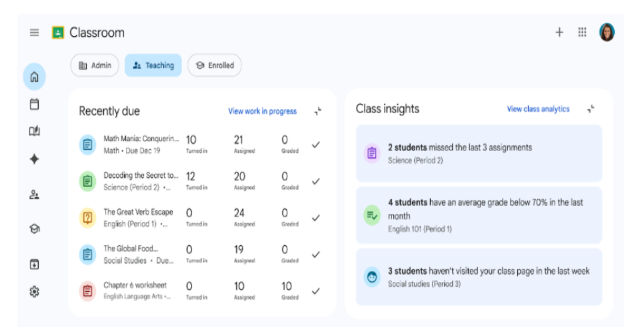
For teachers, a new dashboard gives actionable insights, highlights student classwork interactions, tracks assignment completion, and surfaces a feature spotlight to help discover instructional tools and resources.
Teaching View
Teachers can use the homepage to track student progress and access instructional tools. In the teaching view, you will find these components:
• Recently due: Contains recently due assignments.
• Class highlights: Shows helpful analytics on student performance.
• Feature spotlight: Provides quick links to discover AI tools, video activities, practice sets, and Read Along.
• Classes: Displays your active class cards.
Enrolled View
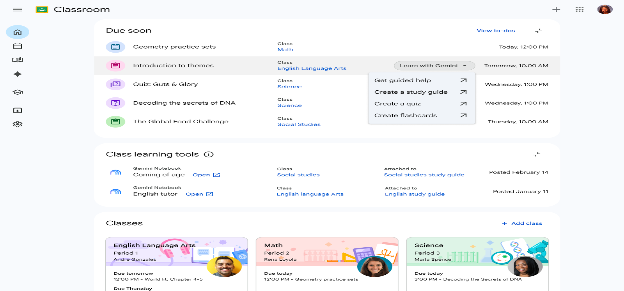
For students, a dedicated enrolled view reminds learners of coursework that is due soon and helps them manage their deadlines. (Note: Learning tools may not be available in your district or school.)
Students can use the homepage to stay organized and keep up with their coursework. In the enrolled view, you will find these components:
• Due soon: Displays up to 5 upcoming assignments across all your enrolled classes that are due within the next 7 days.
• Learn with Gemini: (If available in your district or school) Hover over an assignment and click “Learn with Gemini” to reveal a menu of study actions using your assignment context.
• Class learning tools: (If available in your district or school) Access AI-powered study tools assigned by your teachers, such as Gemini notebooks and Gemini Gems.
• Classes: Displays your active class cards so you can jump straight into a specific course.
Admin View
Administrators and education leaders can use the homepage for school-wide oversight and management. In the admin view, you will find these components:
• School analytics: Shows top-level metrics for your organization.
• Feature spotlight: Provides quick links to support educators and students, manage admin console activities, and share tools with educators.
• New in education and Classroom: Highlights the latest features in the Google education space.
Read Along
Read Along in Google Classroom is now available to all Google Workspace for Education users. This equips millions of students with access to literacy tools, empowering educators to improve academic success.
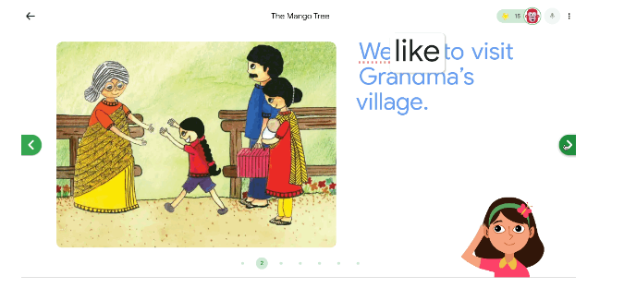
Read Along is designed to build students’ speaking, listening, and decoding skills. It offers flexible learning modes and helps emerging readers practice reading aloud with real-time pronunciation support. Read Along includes questions directly in the material to strengthen comprehension as well as phonics support through word breakdown.
Educators can use Read Along in Google Classroom to provide personalized reading practice for every student.
For teachers, using Read Along to assign stories can help:
• Understand students’ progress better and on a continuous basis.
• Focus their in-class attention on students based on their learning needs.
• Share student progress with parents and school leaders.
For students, Read Along is designed to engage readers and features tools that:
• Provide a library of diverse reading materials, eye-catching illustrations, and an interactive reading experience.
• Deliver real-time feedback.
• Offer on-demand help from a virtual reading assistant named Diya.
• Encourage and reward students with stars and badges when they succeed.
• Guide students along as they progress and support them when they struggle.
These are just a few of the recent updates made to help teachers use Google Classroom. For more information on Google Workspace and other great teacher tips and tricks, be sure to check out our virtual professional development courses on OTIS for educators!
Related Articles & Other Recommended Reading

How to Safely Store Your AR/VR Headsets for the Summer
As the school year comes to a close, properly preparing your AR/VR hardware for summer storage is essential to extending the lifespan of your investment. Taking a few deliberate steps ensures that when teachers and students return in the fall, their headsets, controllers, and charging carts will be clean, functional, and ready for classroom use. […]

Teq Tuesdays: Summer PD Lineup
Summer is here, and so are Teq’s annual summer PD sessions! Join us on select Tuesdays in July and August for a variety of engaging professional learning experiences. Our summer PD lineup this year dives into unlocking the full potential of AI and brushing up on core Google Workspace skills. All sessions will be broadcast […]

What AI Tools Are Teachers Actually Using?
While having a variety of AI tools at your fingertips is helpful, the number of options can feel overwhelming. In our OTIS for educators session, “Demystifying AI Tools,” we’ll dive into the top AI platforms being used in education. We’ll uncover their ideal use cases, abilities, and limitations so that you can find the best fit(s) […]