Canva Presentations for Daily Work and Classroom Management
Lindsey Merrow
Curriculum Specialist
News
Teq Supports District Implementation: Beyond funding guidance, Teq provides turnkey grant alignment, hardware staging, and certified PD coaching via OTISpd.com to ensure 100% classroom adoption.
Just when I thought I couldn’t possibly love Canva any more, I discovered presentation mode features that are sure to keep your lessons engaging for all ages and learners! Canva has a massive library of templates and content to choose from. One of the best things about Canva (and probably the most used feature), is the ability to customize content and templates to suit your classroom needs.
While I have seen the option to present in Canva, I have to admit, most of the time I just download my creations to embed into other platforms. It never occurred to me to present right from Canva, but since finding these shortcuts, it’s given me even more incentive to present exclusively using the platform. Follow along as I break down the steps for how to access these Canva presentations for daily work and classroom management and get you started using them right away!
Using Canva presentations step-by-step
1) On the Canva homepage, type in “teacher planner” in the search bar.
2) Then, on the left side of your screen, you are going to need to filter for “Education Presentation.”
3) You can then choose whichever template you like best, just make sure that it says presentation in the description.
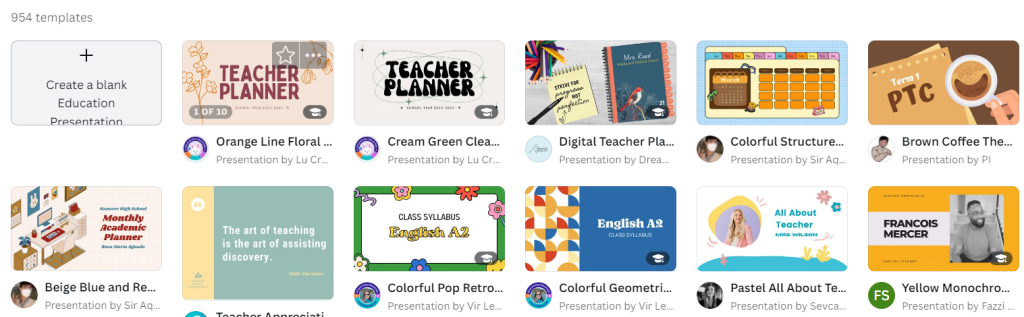
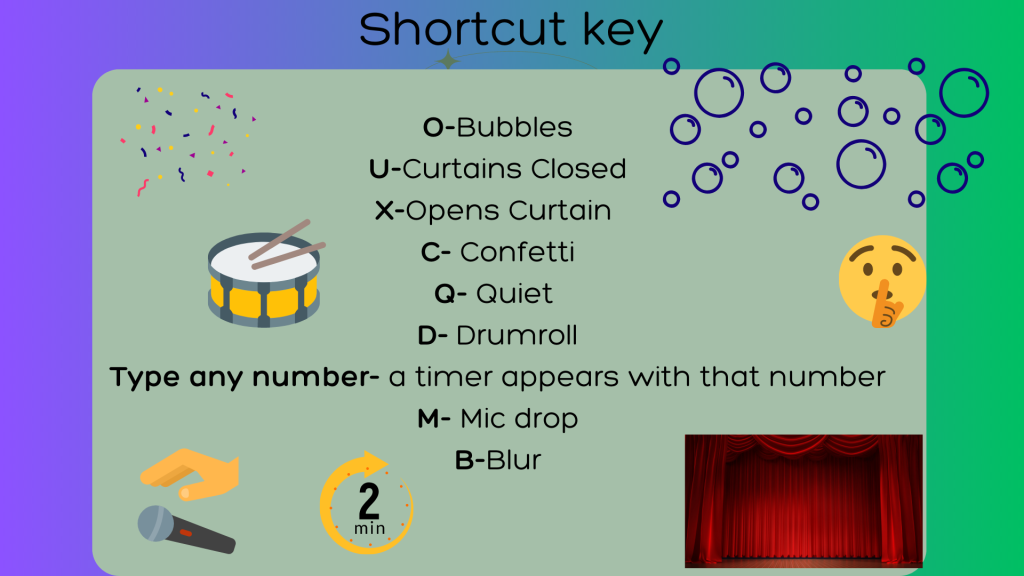
4) From there, you can customize the template just like you would any other Canva creation. When you are done customizing, you can just pop the lesson into presentation mode, Be sure to use the key below to have some fun!
There are so many great tools to use. Just remember to keep the slideshow in presentation mode! You can use these tools to make your lesson more interactive and engaging. You can even use them for some classroom management/executive functioning fostering
Shortcut keys in Canva presentations
You can use these with your students to celebrate their accomplishments and build excitement with some friendly competition. You can even provide visual cues to students about what the expectations are for them during the lesson. For example, by pressing the letter “Q” on your keyboard, a “quiet” emoji will appear on the screen. This will provide a visual for students and let them know they should be actively listening during this part of the lesson. Also, by pressing any number on the keyboard, that number will appear as a timer on the screen. This is so helpful for transitions. You can finish your direct instruction of the lesson. Then, allow students a set amount of time to complete some work independently.
Even more shortcuts
For some fun, engaging elements, a “C” on the keyboard will show some confetti (perhaps to celebrate student successes). An “O” on the keyboard will show bubbles floating on screen. A fun way to end a lesson could be pressing “U” for a curtain call and “X” will open the curtains. Lastly, “B” will blur the presentation in case you need to pause. Use this to to redirect some behaviors or help a student by blurring the background so students have to wait for you. Lastly, “D” will play a drumroll, which could be a fun way to create some friendly competition or suspense in your activity.
 For more information about Canva, check out our Course Library where we feature Canva in several courses. Be sure to read additional blogs written about the platform. Enjoy, and happy presenting!
For more tips, tricks, and tools for teaching in and out of the classroom, check out more content on the Teq Talk blog or our YouTube channels OTIS for educators and Tequipment.
We also offer virtual professional development, training, and support with OTIS for educators. Explore the technology and strategies that spark student success — no matter where teaching or learning are happening!
Follow us on social:
 edteq
edteq  OTIS4educators | Teq Products | iBlocks
  OTIS4educators | MyTeq
  Teq
Teq
0 thoughts on “Canva Presentations for Daily Work and Classroom Management”
Related Articles & Other Recommended Reading

How to Safely Store Your AR/VR Headsets for the Summer
As the school year comes to a close, properly preparing your AR/VR hardware for summer storage is essential to extending the lifespan of your investment. Taking a few deliberate steps ensures that when teachers and students return in the fall, their headsets, controllers, and charging carts will be clean, functional, and ready for classroom use. […]

Teq Tuesdays: Summer PD Lineup
Summer is here, and so are Teq’s annual summer PD sessions! Join us on select Tuesdays in July and August for a variety of engaging professional learning experiences. Our summer PD lineup this year dives into unlocking the full potential of AI and brushing up on core Google Workspace skills. All sessions will be broadcast […]

What AI Tools Are Teachers Actually Using?
While having a variety of AI tools at your fingertips is helpful, the number of options can feel overwhelming. In our OTIS for educators session, “Demystifying AI Tools,” we’ll dive into the top AI platforms being used in education. We’ll uncover their ideal use cases, abilities, and limitations so that you can find the best fit(s) […]